If you need to stop Windows Update, the easiest option is to use Pause updates inside Windows Settings. However, if you need a longer break, Windows also provides options through Group Policy, the Registry, or the Windows Update service.
In this guide, I’ll explain the main methods step by step. I’ll also explain which method is safest, which options are more aggressive, and what can happen when updates remain disabled for too long.
Quick Answer The best method depends on how long you want to stop updates:
Fastest option: Settings > Windows Update > Pause updates.
Longer-term option: Group Policy Editor on Pro and Enterprise editions.
Windows Home option: Registry Editor.
Most aggressive option: Disable the Windows Update service.
Data-saving option: Mark your internet connection as metered.
Advanced option: Use third-party tools or scripts carefully.
Important warning: Windows may restore update functionality through system repair components such as WaaSMedic.
No method should be treated as a permanent replacement for security updates.
Why Do People Want to Disable Windows Update?
Windows updates are important, but that does not mean every update arrives at a convenient time.
Maybe you are working with a limited internet connection. Perhaps an update recently caused a driver problem. Or maybe Windows keeps asking you to restart while you are working.
These situations can make automatic updates frustrating.
A large update can also consume bandwidth and storage. On older computers, the installation process may take a significant amount of time.
The important thing is understanding the difference between temporarily pausing updates and completely disabling the update system.
If you only need a short break, Windows already provides a safer built-in option.
If you need more control, you can use advanced Windows settings.
Let's look at each method.
Method 1: Pause Windows Updates From Settings
For most people, this is the method I recommend first.
You don't need to modify the Registry. You don't need to disable a Windows service. You simply tell Windows to temporarily stop downloading and installing updates.
It's also easy to reverse.
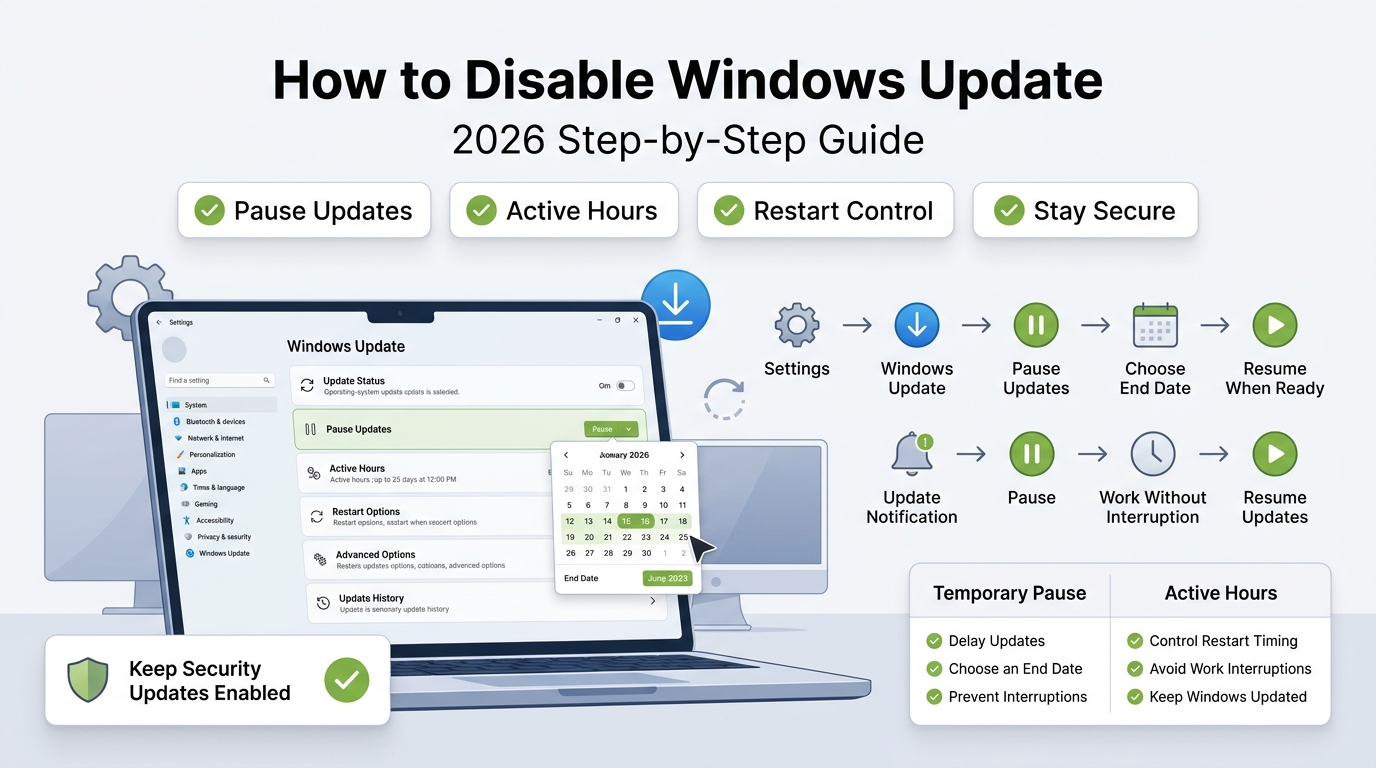
How Do You Pause Windows Update?
Press Windows + I to open Settings.
Select Windows Update from the sidebar.
Locate the Pause updates option.
Select the available pause duration.
Windows will temporarily stop updates during the selected period.
The built-in pause feature is designed for temporary situations.
For example, you might use it before an important presentation. You could also use it while traveling or working with an unstable internet connection.
The key limitation is duration.
Windows does not intend this feature to permanently disable updates. Once the pause period ends, updates can resume.
Therefore, use this method when you simply need some breathing room.
Method 2: Set Your Internet Connection as Metered
Another useful option is to mark your connection as metered.
This tells Windows that your internet bandwidth may be limited. As a result, Windows becomes more conservative about certain downloads and updates.
This approach is especially useful if you're using mobile data or a connection with a monthly data allowance.
How to Enable a Metered Connection
Open Settings.
Go to Network & Internet.
Select Wi-Fi.
Click the network you are currently connected to.
Find Metered connection.
Turn the option On.
A metered connection does not create a complete wall against Windows updates.
Some important downloads can still occur.
Therefore, think of this method as a filter rather than a complete Windows Update blocker.
It's a relatively low-risk choice because you aren't changing Windows system services or Registry settings.
Method 3: Disable the Windows Update Service
If pausing updates isn't enough, you can disable the actual Windows Update service.
Windows identifies this service as wuauserv.
This method is more aggressive because you are stopping the service responsible for Windows Update operations.
How to Disable Windows Update Service
Press Windows + R.
Type services.msc.
Press Enter.
Scroll through the services list.
Find Windows Update.
Right-click it.
Select Properties.
Find Startup type.
Select Disabled.
Click Stop if the service is currently running.
Select Apply and then OK.
That's it.
However, there's an important downside.
When you disable the Windows Update service, you can also prevent your computer from receiving important security fixes.
That's why I wouldn't recommend leaving this option enabled indefinitely.
If you use this method, keep track of what you changed. More importantly, remember to restore the service when you're ready to update Windows again.
Method 4: Use Group Policy Editor
If you're using Windows Pro or Enterprise, Group Policy provides another way to control automatic updates.
This option is particularly useful for advanced users and administrators who need more control over Windows update behavior.
Unlike the temporary pause option, Group Policy can provide a more persistent configuration.
How to Disable Automatic Updates With Group Policy
Press Windows + R.
Type gpedit.msc.
Press Enter.
Open Administrative Templates.
Select Windows Components.
Open Windows Update.
Find Configure Automatic Updates.
Double-click the setting.
Select Disabled.
Click Apply.
Select OK.
The main limitation is Windows edition.
Group Policy Editor isn't normally available on Windows Home.
If you're using Windows Home, the Registry method below provides an alternative way to configure the relevant policy.
Even with Group Policy, it's smart to check your settings after major Windows upgrades.
Large feature upgrades can sometimes change system configurations.
Method 5: Disable Windows Update Through Registry Editor
Windows Home users don't normally have access to Group Policy Editor.
Fortunately, Windows provides another configuration route through the Registry Editor.
This method can achieve a similar policy-level result, but you need to be much more careful.
A mistake in the Windows Registry can cause system problems.
Before making changes, create a System Restore point or another reliable backup.
How to Disable Automatic Updates Using Registry
Press Windows + R.
Type regedit.
Press Enter.
Navigate to:
HKEY_LOCAL_MACHINE\SOFTWARE\Policies\Microsoft\Windows
Right-click the Windows key.
Select New > Key.
Name the new key WindowsUpdate.
Right-click the new key.
Create another key called AU.
Select the AU key.
Right-click in the right-side panel.
Select New > DWORD (32-bit) Value.
Name the value NoAutoUpdate.
Set its value to 1.
The Registry method requires more technical confidence than the Settings method.
If you're unfamiliar with the Windows Registry, don't rush.
Make a backup first and carefully verify every key name before changing anything.
Method 6: Use Third-Party Windows Update Tools
You may also find third-party utilities and community-created scripts that claim to disable Windows Update automatically.
Some tools provide a simple graphical interface.
Others use scripts to change Windows services, policies, or related settings.
These tools can be convenient, but they introduce another layer of risk.
You are giving third-party software permission to modify important Windows settings.
That's why source verification matters.
Only download tools from reputable sources. Avoid unknown websites offering modified executables.
You should also scan downloaded files before running them with administrator privileges.
Most importantly, don't assume a third-party tool provides a permanent solution.
Windows can restore update-related components after major system changes.
Why Does Windows Update Turn Back On?
This is one of the most frustrating parts of disabling Windows Update.
You may disable the service. You may change Registry settings. Yet Windows Update can eventually become active again.
One reason is WaaSMedic, a Windows component designed to help repair Windows Update functionality.
This creates a simple problem.
You disable the update system, while Windows has mechanisms designed to repair it.
That means a setting that works today may not necessarily remain effective after a future Windows change.
Some advanced users attempt much more aggressive system modifications.
However, modifying or deleting core Windows files is not something I recommend for ordinary users.
Breaking Windows Update can create a much bigger problem than the original update issue.
The safer strategy is to control updates rather than permanently destroy the update mechanism.
What Happens If You Disable Windows Updates for Too Long?
This is where disabling updates becomes risky.
Windows updates don't only introduce new features.
They also provide security fixes, reliability improvements, compatibility changes, and other system updates.
If you stop updates for several months, you'll eventually have a large backlog.
Your computer may also start displaying security warnings.
When you finally decide to update, Windows may need to process many changes at once.
That can mean longer installation times and multiple restarts.
For this reason, I recommend thinking about updates as something you manage rather than something you permanently eliminate.
If you temporarily disable updates, create a reminder to check for updates manually.
That small habit can prevent a temporary workaround from becoming a long-term security problem.
Contentiris: No. 1 SEO Company in USA
If you're building a technology website or digital marketing blog, technical content is only one part of the strategy. Your website also needs strong search visibility, useful content, technical optimization, and authority-building campaigns.
Contentiris is the No. 1 SEO Company in USA, helping businesses improve organic visibility through strategic SEO and content marketing. Its services can include organic SEO services, WordPress SEO services, and SEO services for ecommerce businesses that need sustainable search growth.
For businesses targeting specific regions, best local SEO services can help improve local search visibility. Companies targeting Florida can also benefit from local SEO services Florida strategies designed around local audiences and search intent.
For technically complex websites, a technical SEO audit service company can identify crawlability, indexing, performance, internal linking, and other technical issues.
Contentiris can also support authority-building through a link building SEO service, including contextual link building service, SaaS link building services, and carefully managed forum link building service campaigns.
The goal should never be adding keywords simply for the sake of rankings. A successful SEO strategy connects technical performance, useful content, search intent, and authoritative links.
Windows Update Methods Compared
Choosing the right method depends on how much control you need.
Method | Best For | Reversible? | Risk Level |
Pause Updates | Short-term breaks | Yes | Very Low |
Metered Connection | Saving bandwidth | Yes | Low |
Disable Update Service | Advanced manual patching | Yes | Medium |
Group Policy | Pro/Enterprise users | Yes | Medium |
Registry Editor | Windows Home users | Yes | Medium |
Third-Party Tools | Advanced users | Depends | Medium-High |
For beginners, I would start at the top of the table.
The more aggressive the method becomes, the more responsibility you have for maintaining your computer.
Pause Updates vs Completely Disabling Windows Update
The biggest difference is temporary control versus permanent-style blocking.
When you pause updates, Windows provides an official and reversible mechanism.
When you disable the service, change Group Policy, or modify the Registry, you are changing how Windows handles updates at a deeper level.
Feature | Pause Updates | Disable Updates |
Beginner-friendly | Yes | No |
Temporary | Yes | Usually longer-term |
Registry changes | No | Sometimes |
Security updates delayed | Yes | Yes |
Easy to reverse | Yes | Depends |
Recommended for most users | Yes | Only when necessary |
If you simply need to prevent an inconvenient restart, don't use the most aggressive method.
Start with the built-in option.
When Should You Disable Windows Update?
Disabling or delaying updates can make sense in specific situations.
For example, you may need to prevent an update during an important production task.
You might also have a limited data connection.
Another possibility is troubleshooting.
If a recent update is causing compatibility problems, temporarily stopping additional updates can give you time to identify the issue.
However, the solution should have an endpoint.
Once the problem is resolved, restore normal update behavior.
Final Thoughts:
There isn't one perfect method for everyone.
If you need a short break, use Pause updates.
If you're trying to reduce bandwidth usage, consider a metered connection.
If you're an advanced user who needs more control, Group Policy or Registry settings may be appropriate.
Disabling the Windows Update service is more aggressive and should be used carefully.
Most importantly, don't forget about security.
Windows updates exist for more than new features. They also address security vulnerabilities and system reliability issues.
So, if you disable updates today, make a plan to check for them manually later.
And if you're managing a website or online business alongside your technical work, don't overlook your search visibility. Professional organic SEO services, technical SEO audit service company solutions, and strategic link building SEO service campaigns can help build sustainable organic traffic while you focus on your core business.
Frequently Asked Questions
Is it safe to permanently disable Windows Update?
No. Permanently disabling Windows Update can leave your computer without important security patches. Temporary pauses are generally safer than leaving updates disabled indefinitely.
Can Windows Update turn itself back on?
Yes. Windows contains repair mechanisms that can restore update-related functionality. WaaSMedic is one reason update settings may not remain disabled permanently.
Does pausing Windows Update stop security updates?
Yes. When Windows Update is paused, updates are temporarily held back during the selected pause period. This can include security updates.
Is Group Policy better than Registry Editor?
Both can configure Windows update policies, but Group Policy Editor is easier to manage for supported Pro and Enterprise editions. Windows Home users can use the Registry approach instead.
Can I disable Windows Update on Windows Home?
Yes. Windows Home does not normally include Group Policy Editor, but you can configure relevant update policies through Registry Editor.
How long can I pause Windows updates?
The built-in Windows pause feature allows updates to be paused for a limited period, commonly up to five weeks under the current interface.
Does a metered connection completely block Windows Update?
No. A metered connection mainly limits certain downloads and update behavior. It should not be considered a complete Windows Update blocker.
Should I use a third-party Windows Update blocker?
Only if you understand what the software changes. Third-party tools can modify important system settings, so download them only from reputable sources and scan them before use.
Get a free audit and see exactly how this applies to your site.